API keys and scopes
Every request carries a key in the Authorization header. Keys look like ddk_live_ followed by
46 letters and digits.
curl https://app.dealdesk.studio/api/v1/account -H "Authorization: Bearer $DEALDESK_API_KEY"
Create a key
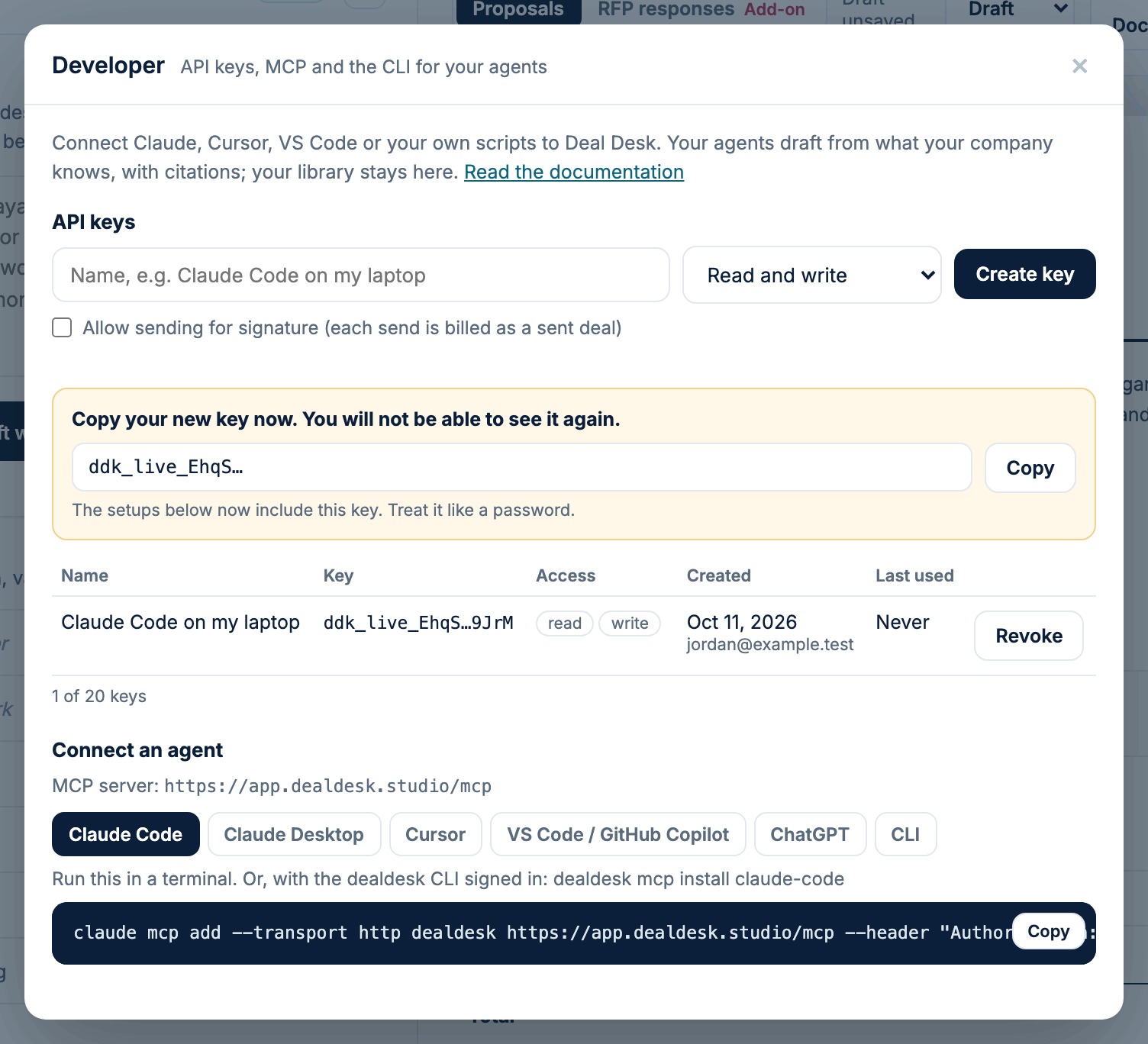
In Deal Desk, open the account menu and choose Developer. Name the key after where it will be used, choose Read and write or Read only, tick Allow sending only if the key should send proposals for signature, and press Create key. You need to be an account owner or admin, on the Starter plan or above. The key is shown once: copy it then.
Scopes
A key acts for your account with the rights of the admin who created it, narrowed by its scopes:
| Scope | Allows |
|---|---|
read | Search the library, list facts, read proposals and RFP responses. Every key has it. |
write | Add documents, teach facts, draft proposals and answers, edit and approve answers. |
send | Send a proposal for e-signature. Billed like a send from the app. Only given when you tick Allow sending. |
A call outside the key's scopes answers 403 with insufficient_scope, and required_scope
names the scope it needed. Over MCP, a read-only key only sees the read-only tools.
One key per agent or computer
- An account can hold up to 20 keys. Use one per agent or computer, so revoking one leaves the rest working.
- Never put a key in a URL, a repository or a shared document. Keys look like secrets to secret scanners (a fixed prefix and a checksum).
Revoking a key
- Press Revoke next to the key in Developer. It stops working immediately.
dealdesk logoutrevokes the key the command line tool was given when it signed in, throughPOST /auth/revoke(see Account).- Deal Desk stores only a SHA-256 hash of each key. It cannot show a key again; if you lose one, revoke it and create another.
- A key also stops working when the person who created it stops being an admin of the account, or when the account leaves the plans that include Developer.